Overview.
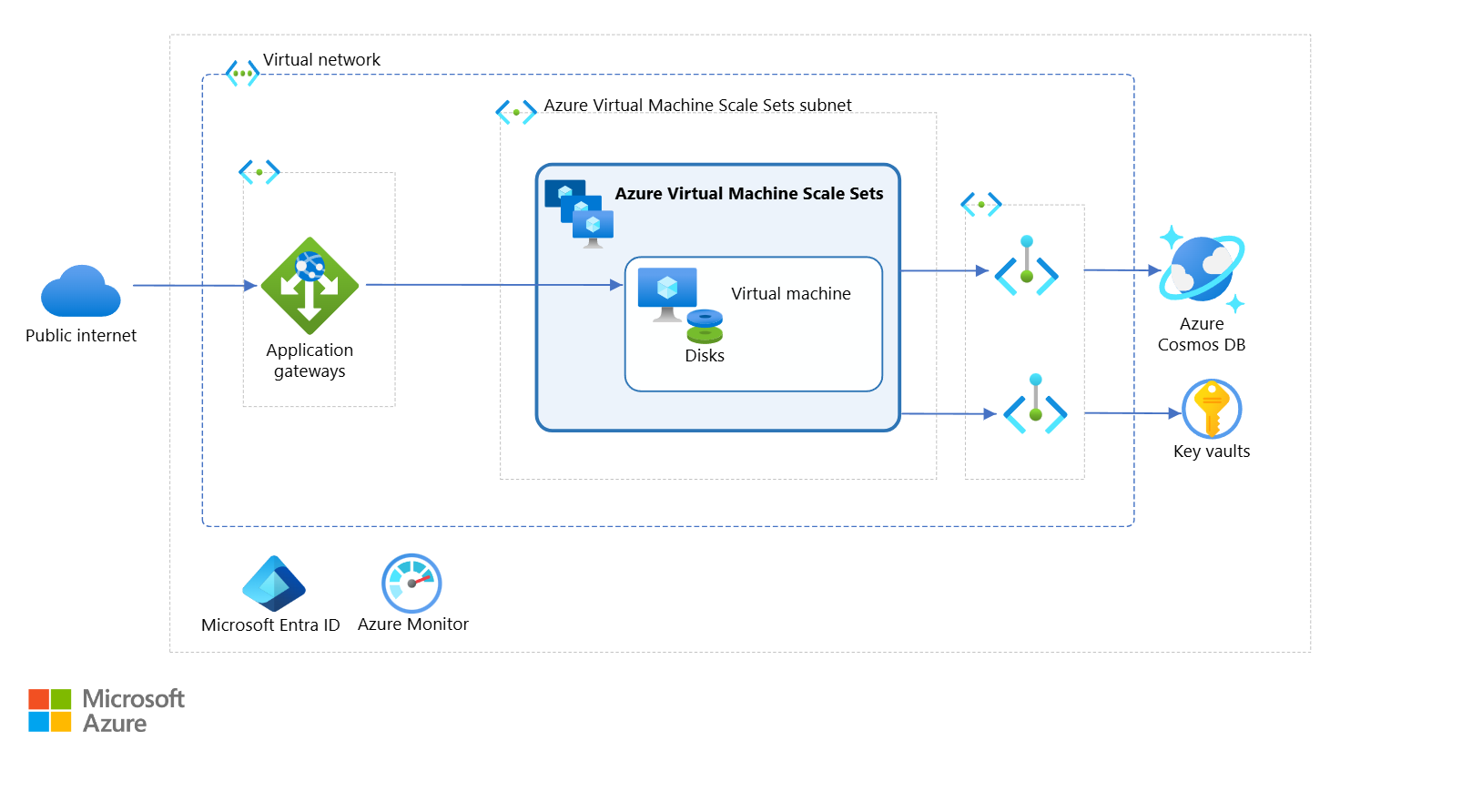
As organizations increasingly rely on cloud infrastructure, virtual machines (VMs) remain a cornerstone of modern workloads. Whether you’re running critical business applications, hosting web services, or processing large-scale data, following VM best practices ensures your infrastructure is secure, highly available, and operationally sound.
This guide outlines a comprehensive set of recommendations to help cloud engineers and architects build resilient, secure, and well-managed virtual machine environments.
Security Best Practices.
Security is the most critical dimension of virtual machine management. The following practices reduce your attack surface and protect your workloads from both external threats and internal mis-configurations.
Enable Just-In-Time (JIT) Network Access Control : Virtual machines should have Just-In-Time network access control enabled. JIT restricts access to management ports — such as SSH (port 22) and RDP (port 3389) — by keeping them closed by default and only opening them temporarily when access is explicitly requested.
Without JIT, management ports may remain permanently open, significantly increasing the attack surface and exposing VMs to brute-force attacks. Enabling JIT access minimizes the risk of unauthorized access and is a foundational security measure for any production VM.
Disable Password Authentication on Linux VMs : SSH passwords are prone to brute-force attacks and are considered less secure than key-based authentication. SSH keys are cryptographically strong and significantly harder to compromise compared to passwords.
It is strongly recommended to, disable password-based SSH authentication on all Linux virtual machines. Use SSH key pairs for all remote access and store private keys securely and rotate them periodically.
Enable Encryption at Host : Encryption at host provides end-to-end encryption by encrypting data on the VM host before it reaches Azure storage. This includes:
-Temporary disks
-Ephemeral OS disks
-OS and data disk caches
Without this feature, temporary disks and caches may contain unencrypted data, creating compliance gaps. Enabling encryption at host ensures no unencrypted data resides on the VM host and helps meet security compliance requirements such as ISO 27001, SOC 2, and PCI-DSS.
Enable Secure Boot : Secure Boot protects virtual machines from unauthorized modifications to the boot chain, including bootkits, rootkits, and kernel-level malware. It verifies the integrity of each component in the boot sequence and only allows trusted, signed components to run.
Enabling Secure Boot on supported VMs adds a critical layer of protection against low-level threats that traditional antivirus tools cannot detect.
Enable Virtual Trusted Platform Module (vTPM) : The Virtual Trusted Platform Module (vTPM) provides enhanced security to the guest operating system. Key benefits include:
-Generating and securely storing encryption keys and sensitive data
-Enabling full-disk encryption capabilities for virtual machines
-Supporting Measured Boot, which detects and records boot integrity
Enabling vTPM adds an additional layer of OS-level security and supports a Zero Trust security posture for your VM infrastructure.
Deploy IaaS Antimalware Extension (Windows VMs) : Windows virtual machines should have the Microsoft IaaS Antimalware extension deployed. Microsoft Antimalware for Azure is a free, real-time protection solution that:
-Identifies and removes viruses, spyware, and other malicious software
-Generates alerts when known malicious or unwanted software attempts to install or run
-Integrates with Microsoft Defender for Cloud for centralized visibility
This extension is a baseline security requirement for all Windows server workloads on Azure.
“If Microsoft Defender for Servers (Plan 1 or Plan 2) is enabled, the IaaS Antimalware Extension is not required, as Defender for Endpoint is automatically onboarded and provides real-time antimalware protection. For environments without Defender for Servers, deploying the IaaS Antimalware Extension remains a recommended baseline.”- Sign In to Windows VMs Using Microsoft Entra ID : Virtual machines should be configured to allow sign-in using Microsoft Entra ID (formerly Azure AD) instead of relying on local administrator accounts. Entra ID-based sign-in eliminates the risks associated with managing local credentials at scale — when an employee leaves, revoking their Entra ID account immediately removes their access to all virtual machines. Access is governed through Azure RBAC roles such as Virtual Machine Administrator Login and Virtual Machine User Login, giving teams fine-grained control over who can access which machines. Additionally, organizations can enforce Conditional Access policies — such as phishing-resistant MFA, device compliance checks, and location-based restrictions — before granting RDP access to a VM. This approach supports a Zero Trust security model and significantly reduces the risk of unauthorized access through compromised local credentials.
High Availability Best Practices.
Downtime can be costly — both operationally and financially. Designing for high availability ensures your virtual machines remain resilient against hardware failures, data center outages, and planned maintenance events.
- Configure VMs in an Availability Set or Availability Zone : Azure ensures that virtual machines placed in an Availability Set or an Availability Zone are distributed across multiple network switches, storage systems, physical servers, and compute racks.
Feature Availability Set Availability Zone Scope Within a single data center Across separate data centers Protection Hardware failures, rack-level outages Full data center failures SLA 99.95% uptime 99.99% uptime Use Case Lift-and-shift, legacy workloads Mission-critical, latency-tolerant apps To avoid downtime and meet high availability SLAs, it is recommended to use one of these features for all production virtual machines.
Storage : Storage configuration directly impacts virtual machine performance, resilience, and security. The following recommendations apply to all VM workloads. Virtual machines should utilize Azure Managed Disks — block-level storage volumes fully managed by Azure. Key benefits include:
-High durability and availability with built-in redundancy
-Server-side encryption and Azure Disk Encryption support
-Private Link support for secure, private connectivity
-Simplified disk management — no need to manage storage accounts manually
-Managed disks are the recommended storage type for all Azure virtual machine workloads.
Virtual machines should use Standard SSD disk volumes as a minimum disk tier. Compared to HDD-based storage, Standard SSDs offer:
-More consistent and predictable I/O performance
-Better reliability for general-purpose workloads
-Lower latency for OS and application disks
For workloads requiring high throughput or low latency (e.g., databases), consider upgrading to Premium SSD or Ultra Disk tiers.
Compliance and Policy Best Practices.
Monitoring and Observability : Visibility into your virtual machines is essential for incident response, capacity planning, and proactive health monitoring.
Diagnostic logs should be enabled on all virtual machines. Logging provides:
-Activity trails that can be reconstructed during incident investigations or security compromises
-Health monitoring data to detect anomalies early
-Integration with Azure Monitor, Log Analytics, and SIEM solutions
Without diagnostic logs, identifying the root cause of an incident or a compromise becomes significantly harder.
Patch Management : Configure Periodic System Update Checks
Virtual machines should be configured to periodically check for missing system updates. Unpatched VMs are a leading cause of security breaches and system instability. Regular patching ensures:-Security vulnerabilities are addressed promptly
-System performance is optimized with the latest fixes
-Compliance requirements around patch management are met
Azure’s Update Management solution or Azure Automatic VM Guest Patching can be used to automate and schedule updates consistently across your VM fleet.
Install the Azure Machine Configuration Extension : Virtual machines should have the Azure Machine Configuration Extension (formerly known as the Guest Configuration Extension) installed. This extension allows Azure Policy to evaluate and audit the internal state of virtual machines, enabling:
-Policy compliance checks on OS settings and application configurations
-Detection of security misconfigurations inside the machine that cannot be detected externally
-Integration with Microsoft Defender for Cloud recommendations
The extension is actively maintained by Microsoft and is the modern, recommended approach for running internal compliance scans across your VM fleet. It is required for full Azure Policy coverage and replaces the deprecated Log Analytics Agent (MMA) for policy-based assessments.
Conclusion
Building and operating virtual machines in the cloud requires a layered approach that spans security, availability, storage, compliance, monitoring, and patch management. Implementing these best practices from the start reduces risk, improves reliability, and ensures your infrastructure is well-positioned to meet both technical and regulatory requirements.
Whether you’re migrating existing workloads or building cloud-native environments, these recommendations serve as a strong foundation for a secure and resilient virtual machine strategy.